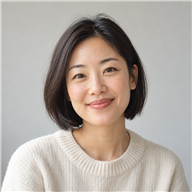
Explore a different style
Use a photograph to discuss a watercolor, illustration, or cinematic direction. Describe the elements that should remain recognizable as well as the style you want.
Upload a reference and describe a new style, atmosphere, or creative direction.
Image-to-image generation begins with an existing picture and uses it as visual guidance. A prompt describes what should change, such as the medium, lighting, surroundings, or atmosphere. Unlike text-to-image, the source gives the process a starting composition and subject.
This approach suits visual reinterpretation: turning a room photograph into an illustrated interior concept, exploring a different season in a landscape, or developing campaign directions from a reference. The AITints demo keeps uploads in your browser and shows the setup; it does not yet transform the image.
Find the approach that fits your next project.
Use a photograph to discuss a watercolor, illustration, or cinematic direction. Describe the elements that should remain recognizable as well as the style you want.
Start with a room layout and describe new materials or mood. Treat outputs as concepts, not accurate plans or a guarantee that furniture dimensions will be preserved.
Reinterpret a setting or lighting to explore a campaign theme. Keep the original so that every direction can be compared against the same starting point.
Upload a clear image with a visible subject. Avoid sources so small or compressed that important features cannot be distinguished.
Explain the style or change and mention what should stay. Choose a canvas shape that suits the intended use.
Explore the demo preview. With live processing, inspect the subject and structure against your original before keeping a variation.
Use an example as a starting point, then adjust it to your image or idea.
Reinterpret this street scene as a textured watercolor illustration. Keep the main buildings and street perspective, use a warm muted palette, and soften background details.
Balances a new medium with instructions about the original structure.
Use this room as a layout reference. Explore light oak, cream upholstery, and warm evening light. Keep the windows and overall camera perspective.
Makes new materials and preserved elements explicit.
Reimagine this landscape in early autumn with golden foliage and morning mist. Keep the mountain silhouette and the position of the lake.
Limits the change to season and atmosphere.
These are instruction examples, not generated results. AI processing is simulated in this preview.
Live models may change identity, geometry, or details even when asked to preserve them.
A reference guides the output; it is not an exact pixel-level constraint.
This demo displays the uploaded image unchanged and does not apply the selected style.
A closer look at where AI Image to Image fits into a creative workflow.
Starting with a photo gives my idea an anchor. I can describe the new style while keeping the composition in mind.
The source photo and instructions stay together, so the creative direction is easy to follow.
I like being able to revisit an earlier version and explore a different mood from there.
The reference gives everyone a shared starting point when we discuss a different visual style.
I can describe a new atmosphere while being specific about the elements I want to preserve.
Being able to attach another reference makes a material or lighting direction much easier to communicate.
Design preview: all portraits, names, reviews, star ratings, and the #1 badge are illustrative placeholders, not verified customer feedback or an actual ranking.
Text-to-image begins with a written description. Image-to-image also uses a source picture to guide the subject, layout, or appearance. Both can use text instructions but start with different information.
Not necessarily. Generation can alter proportions or object positions. Preservation instructions describe your intent, but actual behavior depends on the model and available controls.
That is a common use case. Describe the medium and the details that should remain. AITints currently demonstrates the setup with a local preview rather than producing an illustrated result.
Not in this prototype. The selected file is opened locally through a temporary browser object URL. No image upload or model request is made.
Use a picture you own or have permission to use. Copyright, trademark, and rights relating to recognizable people still matter when exploring another visual direction.
Try the interactive demo above. No payment is required.